


Reviews Satechi USB4 Slim NVMe SSD enclosure review

Satechi USB4 Slim NVMe SSD enclosure review

Satechi USB4 Slim NVMe SSD enclosure
Review

Our Verdict

The first thing you notice about the Satechi USB4 Slim NVMe SSD enclosure is just how stylish it is, and it very obviously reflects the styling of the Apple Mac mini that it’s been designed to work alongside. Although in this review I won’t be using it with one, as I don’t have one, I do have a MacBook Pro M1 Max that has Thunderbolt 4 ports, so I should be able to test out the full potential of this enclosure.

The other thing to note right at the beginning of this review is the fact that this is an SSD enclosure, so it doesn’t come with an SSD internally, just a way to interface it with your computer. For this test, I’ve actually used one of the latest Samsung PCIe 5 SSDs for two reasons: first, because I had one, and secondly, the speed of it, considering compatibility, should be far in excess of what this enclosure is capable of, so it will be a good test of those maximum speeds.

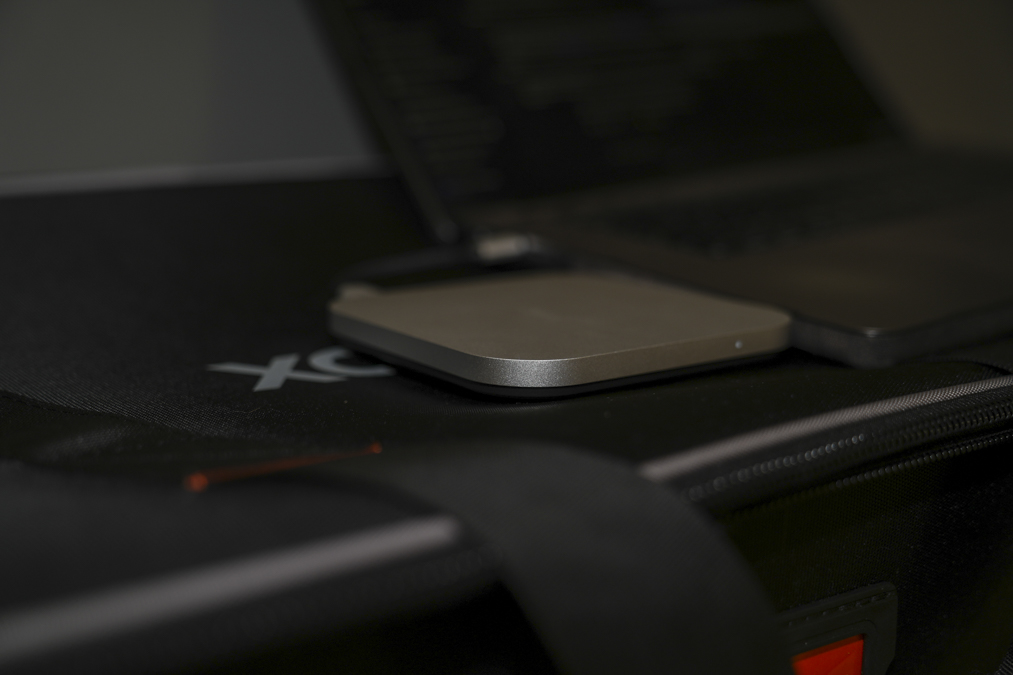
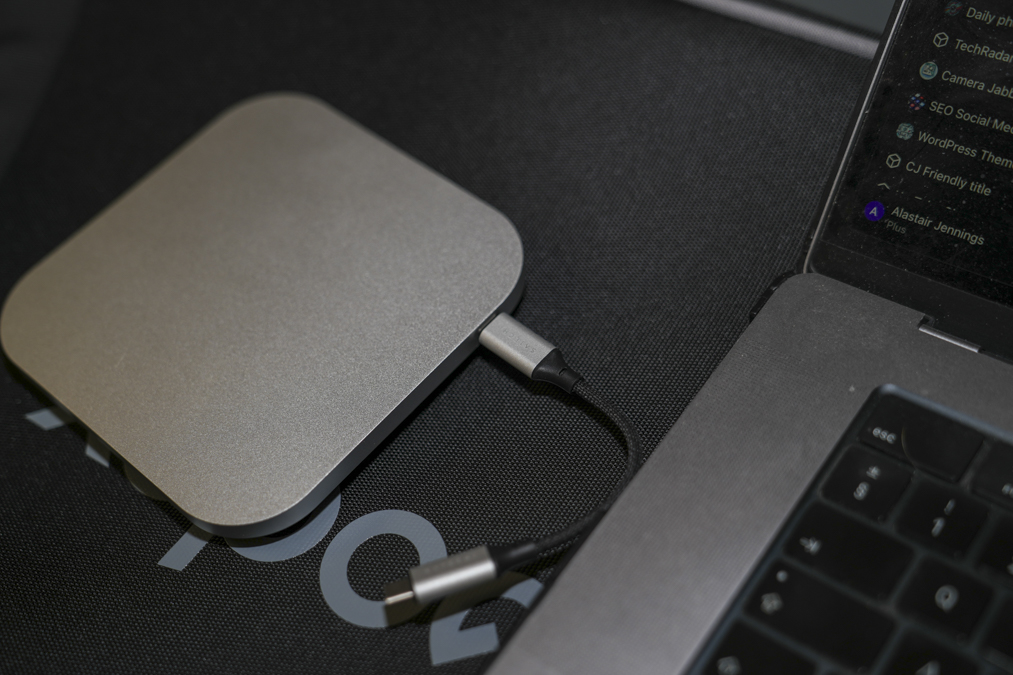
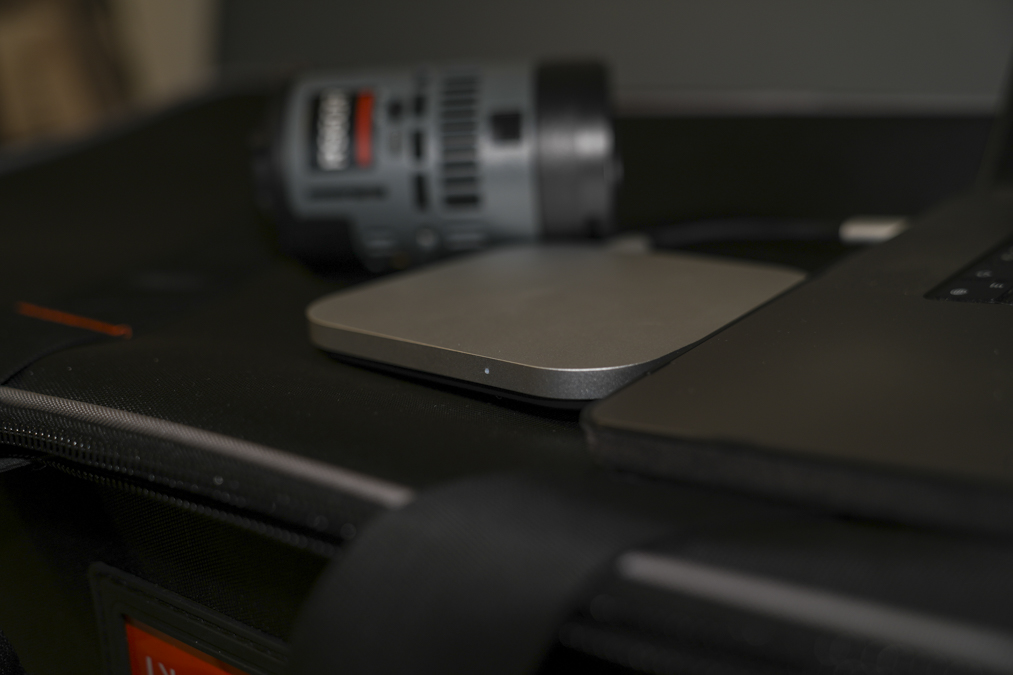
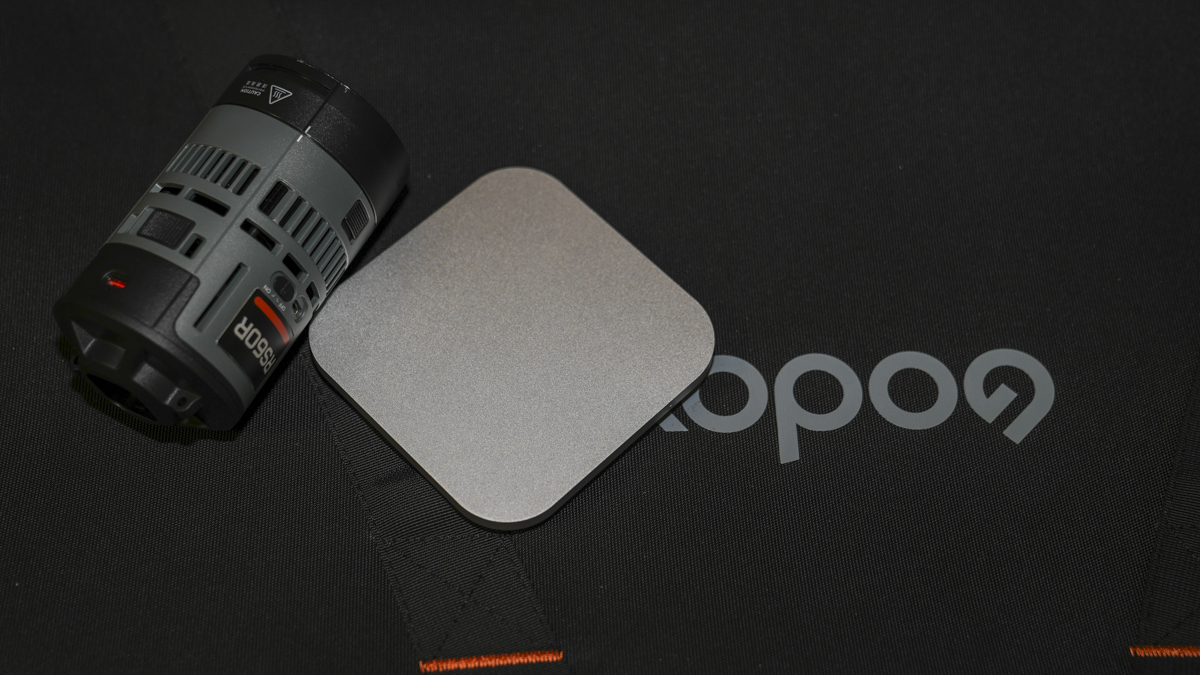
The first thing that really impressed me was the quality of this full aluminium design, making it extremely durable and aesthetically pretty much matching the Mac mini. Even if you don’t have a Mac mini, it looks pretty stylish on your desktop, and I was just really pleased with the overall look and design. It’s very impressive.

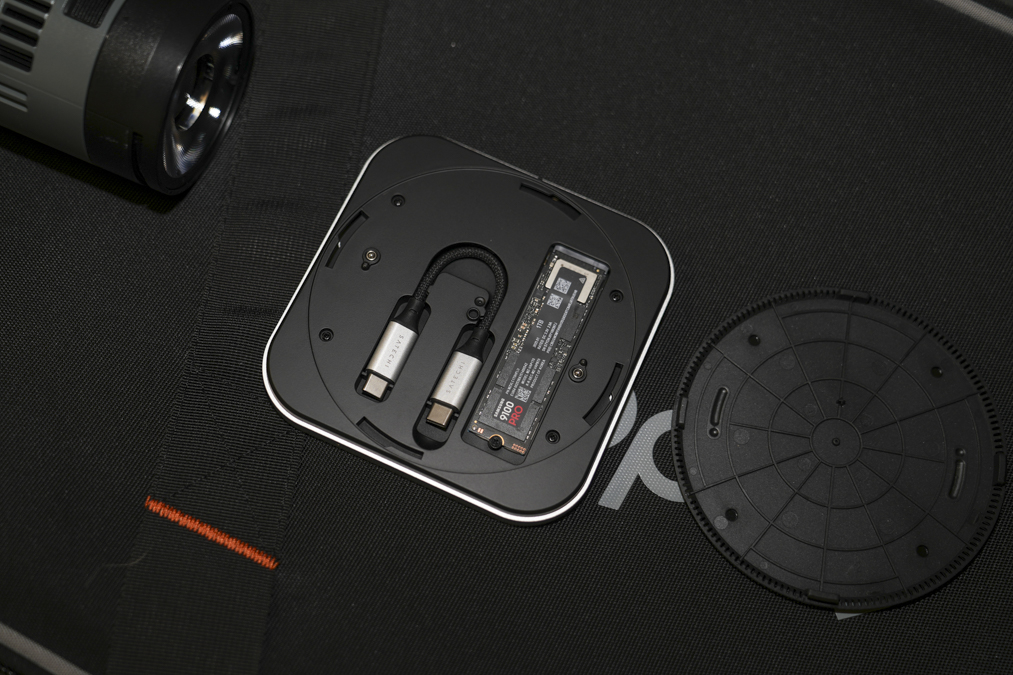
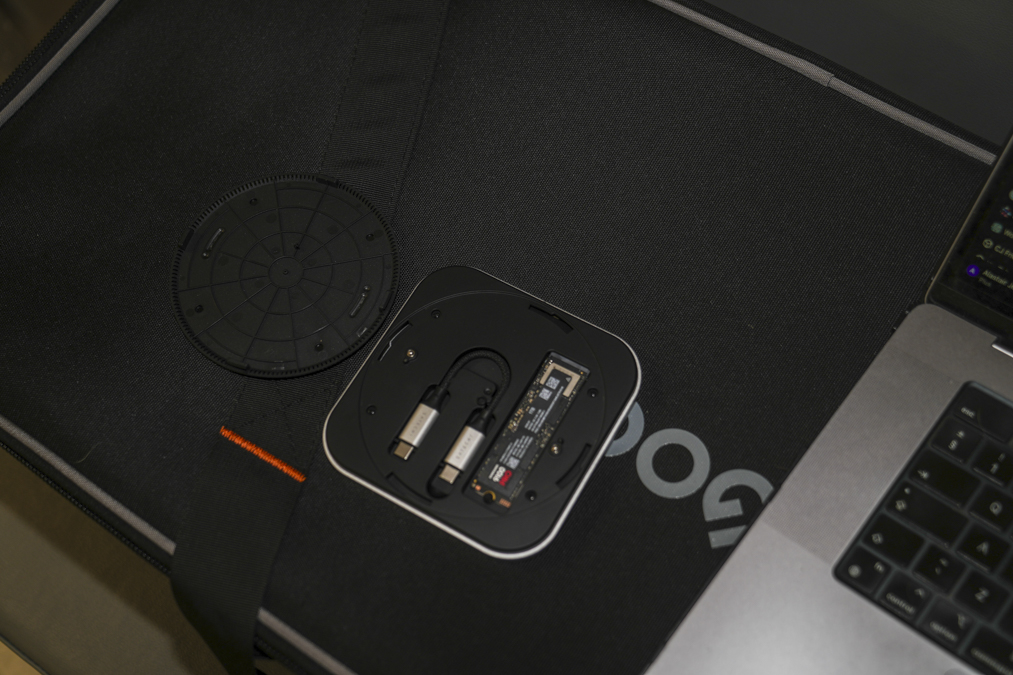
Popping in an SSD is also very quick and easy, with a tool included for removing the base of the enclosure. One of the features that I really liked here was the internally looped cable. Whilst the cable is fully removable, when you’re in transit, you can very quickly pop it back inside the drive and click it closed. It’s just a feature that I really like. It’s a bit odd that the SSD is on show when you take the base off, but it’s a good balance, and ultimately, I couldn’t really see a fault with it.

When you pop off the bottom of the drive, then you can install the SSD of your choice. As I said, in this review, I’m going to be using the Samsung SSD just because I have it available. One of the things that I did note was that whilst most of my SSDs worked perfectly well in it, the one type that won’t is SATA. So if you do have SATA-based M.2 drives that you think would be a good fit for this SSD, then it does state they’re not actually compatible.

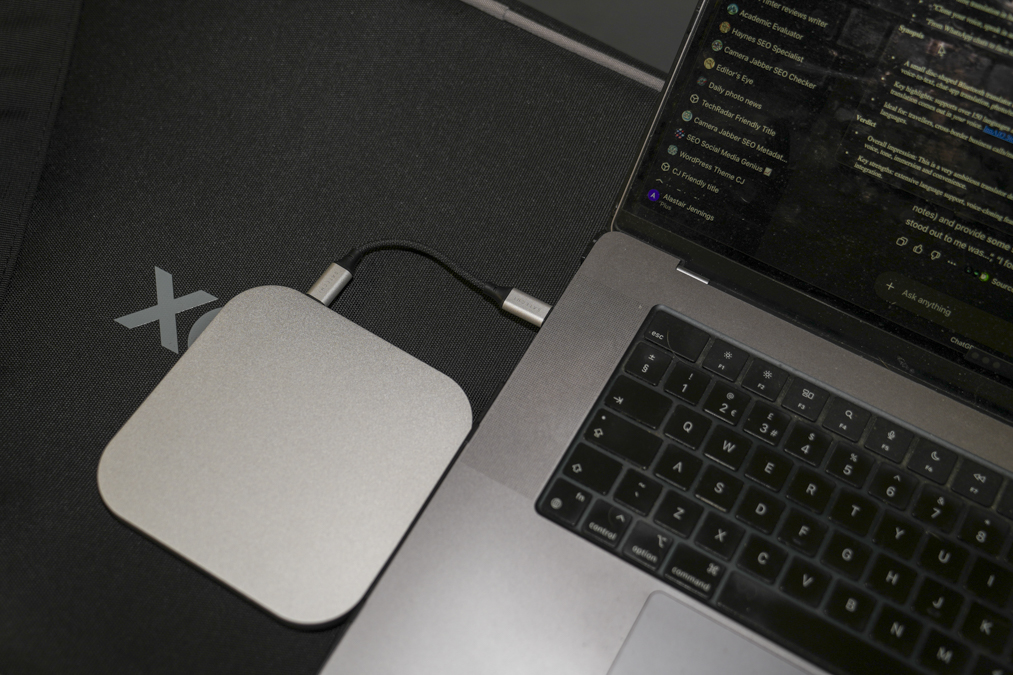
Once everything was installed and I clicked the base back into place and plugged it into my MacBook Pro, I was instantly impressed with the transfer rate, which really highlights how good the Thunderbolt or USB4 interface is. Transfer rates were far in excess of most other portable SSDs, and while the enclosure itself is quite expensive, and the drive that I’m using is also quite a premium drive, when you balance out the performance and capacity, it’s actually considered cheaper than an equivalent prebuilt portable SSD.

But it also gives you the option to choose the capacity of the portable SSD that you use. If you start off with a small SSD and upgrade in the future, then having an enclosure rather than a sealed unit just gives you a little bit more future-proofing.

If I had a Mac mini, then I would definitely be using this as a way to easily expand the storage of my machine. Even though I don’t, I still really like the aesthetics. For a USB4 enclosure, it’s also well priced, and actually the larger size means that even with my high-performance SSD internally, I could use it as a true working drive and it didn’t seem to have any thermal throttling, again, probably due to the additional size and the full aluminium build acting as a good heatsink for the high-performance SSD that I’ve installed.

Ultimately, if you have a Mac mini, then this is an absolute must. It’s a really great SSD enclosure. However, if you’re using any other system, then there are good options available, but once again, the price of this particular option is exceptionally good considering the interface. So if you like the design, this is as good as any and would certainly look stylish within any photo studio.

What is the Satechi USB4 Slim NVMe SSD enclosure?

The Satechi USB4 Slim NVMe SSD enclosure is an all-aluminium enclosure that enables up to 40Gbps transfer speed between the installed SSD and your machine. This makes it an ideal option for anyone using one of the latest Macs, all of which feature USB4 and will enable these types of transfer speeds.

One glance at the enclosure and it’s very obviously designed to be a compatible model with the Apple Mac mini, matching it both in style, colour and shape. If you do have a Mac mini, it will sit very neatly on top of the machine with the link cable working perfectly to link this portable SSD directly into the back of the Mac mini. It’s also worth noting that this is a portable-style SSD, so it’s bus-powered, essentially drawing its power from the host machine rather than supplying its own.

Again, as this is an enclosure and not an SSD, on top of the cost of the drive, you will also need to purchase an SSD, but it’s important you select one that can handle transfer rates of up to 4000MB per second, as those are at the mid to higher end of the range. You’ll also want to make sure of the generation of the SSD to ensure maximum compatibility. In this test, I’ve used a PCIe 5.0 SSD, but standard PCIe 4.0 will probably be a far better option for ensuring maximum compatibility.
Satechi USB4 Slim NVMe SSD enclosure

When it comes to the type of M.2 NVMe SSD that you can install within this enclosure, Satechi have given you plenty of options, with 2230, 2242, 2260, and the most popular 2280 sizes all fitting in. When it comes to capacity, anything from the smallest to 8TB will fit comfortably.

There are a few things that really made this drive stand out against many of the other enclosures out there. The first is the USB4 interface that enables faster transfer rates. The second is really the design; it’s larger and slimmer than many other portable SSD enclosures of this type, and I personally really like how it looks, with or without the Mac mini. The other point, which is more interesting, is that it will take far larger capacity SSDs than many other enclosures of this type, going all the way up to 8TB, whereas most will only take up to 2TB, showing once again that USB4 interface makes a huge difference not just to the speed but to the compatibility of the SSD that you install.
Specification

  • Interface: USB4 (up to 40Gbps)
  • SSD Support: M.2 NVMe (2230, 2242, 2260, 2280), up to 8TB
  • Dimensions: 5 × 5 × 0.63 in (12.7 × 12.7 × 1.6 cm)
  • Weight: 200g
  • Materials: Aluminium housing with ventilation + thermal pad
  • Compatibility: Backwards compatible with Thunderbolt 3/4, USB-C, USB-A (reduced speeds)
  • Installation: Tool-included, twist-off design with internal cable storage

Satechi USB4 Slim NVMe SSD enclosure Build and Handling

As I mentioned, the first thing you notice about the design of the USB4 Slim NVMe SSD enclosure is how closely matched it is to the Mac mini; it’s a perfect fit for sitting directly on top of that machine. When it comes to the size and weight, it measures exactly the same as the top of the Mac mini, 12.7 × 12.7 cm and 1.6 cm high. Weight-wise, it comes in at 200g, but obviously, there’s a little bit more weight once the SSD is installed.

The materials used are aluminium, and this not only gives it a stylish look and matches well with the Mac mini, but also helps dissipate the heat, and this is something that we’ve seen with many other portable SSDs and enclosures.

The design instantly made it stand out from many of the competitors. One of the things that I really like is the way that the cable has been hidden inside the enclosure. You essentially just have to twist the base to remove it, revealing both the installed SSD and a place to store the cable. This is just something really neat and tidy that I really like, and something that is so often lacking from other devices of this type.

Satechi USB4 Slim NVMe SSD enclosure

When the enclosure arrives, it is, of course, empty, so you need to install your SSD, and this process is extremely easy. All you do is, again, twist the base and remove it. Then you’ll see the space where the SSD will fit. In this case, I’m using a Samsung SSD, which is of the 2280 size, so it sits directly in and then secures with one screw.

Once the SSD is in place, all you need to do is plug it into your machine, go to your Disk Utility application and make sure it’s formatted and ready to use for the system. In this case, I’ve formatted it in APFS, as it will only be used with my Mac machines. If I wanted to use it across Mac and Windows machines, then I’d format it in exFAT for maximum compatibility.

Satechi USB4 Slim NVMe SSD enclosure Features

As the enclosure essentially arrives empty, when it comes to its features, they’re really centred around the technology in the interface that it utilises once the SSD is installed. Whilst there is a huge variety of M.2 2280 SSDs available, as this enclosure features a USB4 interface, it’s essential that you find an SSD that can match or exceed that speed in order to make full use of the transfer rate that will be available.

Those transfer rates are up to 40Gbps, which is exceptionally fast, double the speed of USB-C 3.2 Gen 2×2, which is often used by many portable SSD manufacturers and offers 20Gbps, or USB-C 3.2 Gen 2, which offers 10Gbps and is commonly seen with other drives compatible with Mac systems.

One of the great things about this enclosure is that, because it uses the latest interface and the latest technology, it will also accept larger capacity SSDs than many other M.2 enclosures, with the maximum capacity of 8TB, which for SSDs is huge. It’s also fully backwards compatible with Thunderbolt 3 and 4, as well as many older USB standards.

Satechi USB4 Slim NVMe SSD enclosure

One of the issues with these high-capacity, high-performance SSD enclosures is heat throttling, but here there’s plenty of built-in cooling, essentially by the aluminium housing, vents, and a large thermal pad that all help to keep the temperature of the SSD in shape, even when put under load.

Satechi USB4 Slim NVMe SSD enclosure Performance

Getting started with this USB4 Slim NVMe SSD enclosure is relatively simple. All you need to do is twist the back to remove it, which will reveal the M.2 slot and the connecting USB-C cable.

To install the SSD, simply pop it into the slot with one of the screws, screw the other end down so it’s nice and secure, and there’s a large thermal pad that should interface with the SSD to ensure that heat transfers from the hardware into the design of the aluminium case.

Once the drive is installed, the USB cable can be removed from its compartment, and the back of the SSD can be popped back in place. Now all you need to do is plug the SSD into your machine, go to Disk Utility or Drive Manager, depending on your OS, and reformat the drive in the file system that you need.

Satechi USB4 Slim NVMe SSD enclosure

In this test, as I mentioned before, I’m using APFS, which is Apple’s proprietary file format. I want to ensure maximum compatibility and resilience when used as a working drive for Final Cut Pro as well as Photoshop. I aimed to use this drive as a working drive through this test, so I could see essentially how well it works when put under the strain of editing high-resolution images from the Canon EOS R5C and the Sony Alpha 7 IV.

Plugging in the drive and after a couple of seconds, it appears on the desktop and can then be quickly accessed and just used as any other SSD. In the real-world tests, I created a video project from footage shot on the Sony A7 IV and edited that in Final Cut Pro X. The footage was shot at 4K and in S-Log3, a good high-resolution format that was then edited, graded and output. What was apparent was just how well the drive was able to keep up with the demand.

Whilst the internal SSD of the MacBook Pro is fast, it turns out that a connected portable SSD, if fast enough, can boost the speed and performance of my workflow, particularly when using Final Cut Pro X.

I also ran a benchmark test just to see how fast the SSD was, and I was actually taken aback by those transfer rates. With the internal SSD in my MacBook Pro M1 Max, I see read speeds of 5013.7 MB/s and write speeds of 2854.9 MB/s. Crossing over to the USB4 Slim NVMe SSD enclosure with the ultra-fast SSD installed, I now see 3012 MB/s, slightly slower than the internal SSD. However, when it comes to read speeds, they’re topping out at 3015.7 MB/s, slightly faster than the internal SSD.

At the end of the test, I was impressed with the transfer rates possible with this external SSD. I really like the design, and if I had a Mac mini, this would absolutely be the SSD enclosure that I would choose. The style and design are spot-on, and the build quality is exceptionally high. The fact that it uses the USB4 interface to enable such fast transfer speed also really appeals. Through my tests using it as a working drive in Final Cut Pro X and daily in Photoshop, it worked flawlessly, keeping up with all the demands and with no apparent thermal throttling of the SSD internally.

Final Thoughts on the Satechi USB4 Slim NVMe SSD enclosure

If you’re looking for an SSD enclosure that will help to maximise the full potential of many SSDs, then the Satechi USB4 Slim NVMe SSD enclosure is a perfect option. The design is absolutely stunning, and if you own a Mac mini, then it’s an ideal fit—but even if you don’t, the slim style and design just fit in neatly with any stylish photo studio.

Unlike many other portable SSDs, you have the option to choose both the speed and the capacity of the internal storage. Whilst the drive itself is over £100 with no SSD installed, you then have the option to choose an SSD that matches your budget. That will inevitably be cheaper than buying a pre-configured option, with the obvious advantage that you can upgrade the SSD to something bigger and faster at a later date, making it a form of future-proofing and a better long-term investment.

Satechi USB4 Slim NVMe SSD enclosure

The design, with that solid metal exterior, also makes it really durable, so it’s really designed to be left in the photo or video studio and used as a working drive. You can also take it with you, and the fact that you can stash away the short USB-C cable within it so it doesn’t float around and easily get lost is one of those design features that just shows this enclosure is a little step up from most others.

I’ve used many SSD enclosures, and few match the performance and certainly the capacity potential that this enclosure has to offer. Through my test, using the drive now for over a month with that ultra-fast SSD installed—I’ll certainly stand by how impressed I’ve been with the performance and the fact that it so easily dissipates heat, even when under sustained load.

What I would keep in mind is that, as you’re installing your own SSD, you need to make sure that it can match the performance of this enclosure. If you put a slower SSD into this enclosure, it isn’t going to miraculously boost its speed, so do make sure that you have an SSD with transfer rates, both read and write, that are equal to or greater than 4000MB/s.

Satechi USB4 Slim NVMe SSD enclosure

By the end of the test, I was just really impressed with how good this is. Firstly, aesthetically, it looks great, especially if you have a Mac mini. The style and design are just spot-on, and if you’re using a portable SSD, the fact that it has that short USB cable that fits inside the body so it doesn’t get lost is another feature that I really like. A shame, however, that it doesn’t come with a protective case of any type, so if you do use it as a portable option, then there could be a little bit more protection for that really beautifully finished matte silver aluminium exterior.