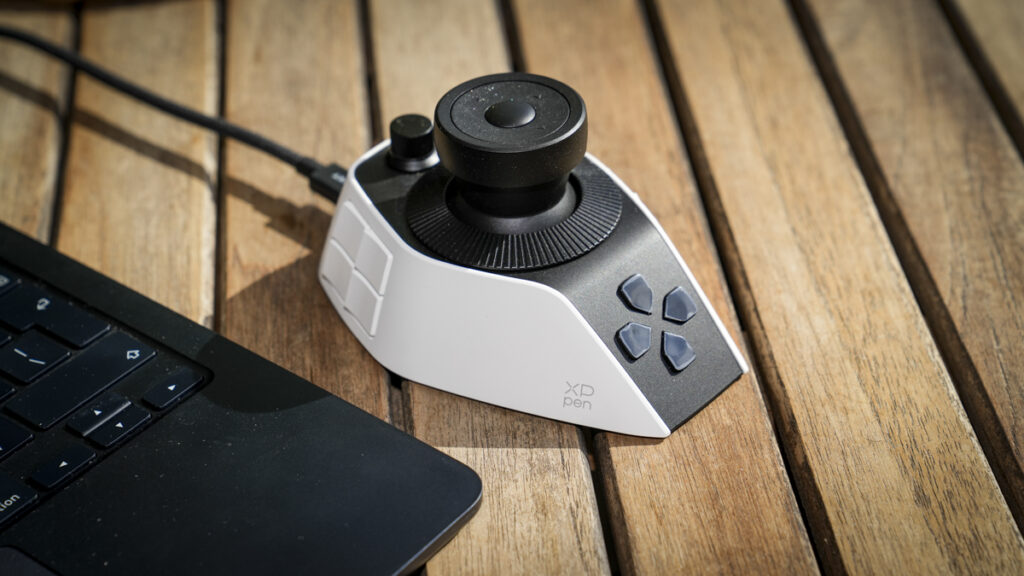

The XPPen Pilot Pro is a highly customisable editing controller for faster one-handed creative workflows.
Our Verdict
The XPPen Pilot Pro is, in essence, one of the old editing control boards shrunk down into a single small device, and for the most part, it works exceptionally well. It puts a joystick, three rotary dials and a bank of customisable buttons under one hand, mapping to whatever shortcuts you like across editing and grading software. During the test, once I’d set everything up to my liking, I found that old muscle memory from years ago kicked in, making this one of the most fluid ways I’d edited video in years.
Through around two months of testing I tried out the control device with Final Cut Pro, Premiere Pro and Lightroom Classic, and I found the same thing, albeit to a lesser degree held true with those applications as well: there’s a learning curve, in setting it up, and getting everything to your liking when it comes to button allocation to shortcuts, but once I’d got through it, the actual use of the controller fades into the background as it just feels natural to use, I found that I was simply editing faster than when using the keyboard.
It’s not all perfect, and I feel there’s plenty more scope for the future. For instance, I’d love a spring-action scrub wheel, and I hit some early stability wobbles on one M1 Max Mac, but as a way of speeding up a repetitive editing workflow, it’s a clever and genuinely useful bit of kit.
What is the XPPen Pilot Pro?
The XPPen Pilot Pro is a one-handed editing console (model ACC02-A, if you need it exactly), designed to sit alongside your keyboard and mouse, giving you fast, physical control over editing and grading software. Rather than a pen tablet, which is what XPPen is best known for, this is a control surface: a joystick, three rotary dials and a set of buttons that you assign to shortcuts and commands, executing well over a hundred functions depending on how you configure it.
For a limited time the XPPEN Pilot Pro is available for £150 down from £169.99 saving you £19.99 to make the most of this offer check out the following details: https://bit.ly/3RjnQKZ
Code: CAMERA10
Valid until: 30 September
It’s aimed at editors, colourists and photographers who spend long hours in the same applications doing repetitive tasks, scrubbing timelines, nudging playheads, adjusting sliders and colour wheels, and who want a faster, more tactile way of working than keyboard shortcuts alone. It supports DaVinci Resolve, Premiere Pro, Final Cut Pro, CapCut, Photoshop and Lightroom Classic, with per-application profiles that switch automatically as you move between programs.
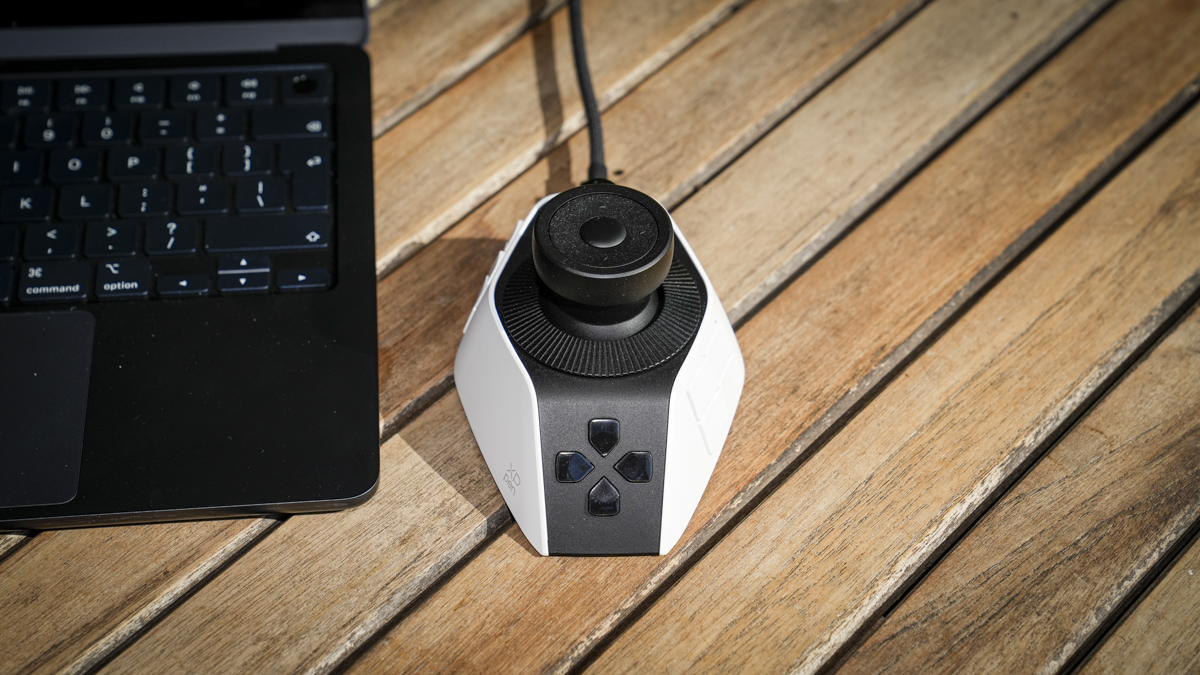
While the main focus of the XPPen Pilot Pro is as a video tool, it’s actually equally suited to Lightroom Classic, where I found the same principles apply as in an edit suite: you can assign the dials and buttons to the adjustments you use most, and work through a catalogue by feel rather than hunting through panels.
Another point of interest is that there are three ways to connect the controller to your machine: wired over USB-C (which I used for most of this review), over Bluetooth 5.4, or via a 2.4G receiver. Inside, there’s an internal battery for when you’re using the wireless feature, and the manufacturer claims it will last 15+ days on a single charge.
Specification
Model: ACC02-A
Dimensions: 130.25 x 92.5 x 66.9mm
Weight: 251g
Controls: 19 buttons total (12 shortcut, 3 function, 4 joystick touch), 3 rotary dials, 1 joystick
Haptics: 3 vibration strength modes on the dials
Connection: wired USB-C, Bluetooth 5.4, 2.4G receiver
Battery: 1,900mAh, claimed 15+ days
Charging: 5V/2A, USB-C
Themes: 7 per preset
Software: DaVinci Resolve, Premiere Pro, Final Cut Pro, CapCut, Photoshop, Lightroom Classic
Compatibility: Windows 10+, macOS 11+
Colour: white
In the box: console, USB-C cable, USB-A adapter, 2.4G receiver, storage bag, quick guide
Warranty: 24 months
Price: £160.99 (from £169.99)
Dimensions: 130.25 x 92.5 x 66.9mm
Weight: 251g
Controls: 19 buttons total (12 shortcut, 3 function, 4 joystick touch), 3 rotary dials, 1 joystick
Haptics: 3 vibration strength modes on the dials
Connection: wired USB-C, Bluetooth 5.4, 2.4G receiver
Battery: 1,900mAh, claimed 15+ days
Charging: 5V/2A, USB-C
Themes: 7 per preset
Software: DaVinci Resolve, Premiere Pro, Final Cut Pro, CapCut, Photoshop, Lightroom Classic
Compatibility: Windows 10+, macOS 11+
Colour: white
In the box: console, USB-C cable, USB-A adapter, 2.4G receiver, storage bag, quick guide
Warranty: 24 months
Price: £160.99 (from £169.99)
Build and Handling
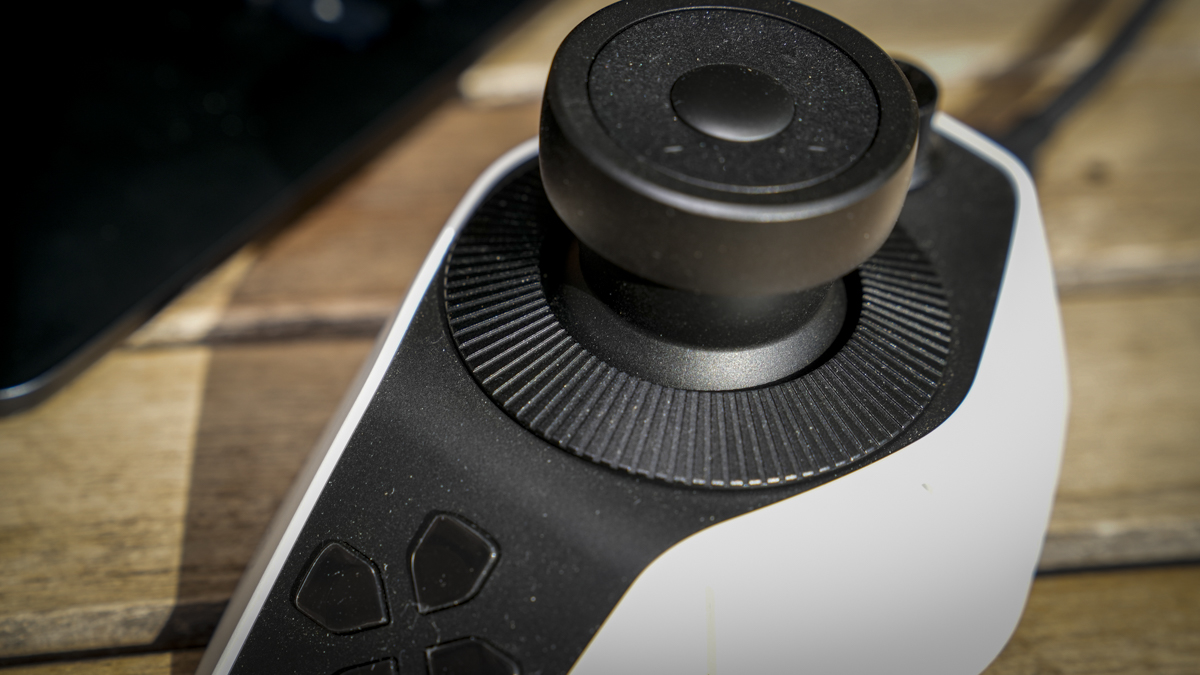
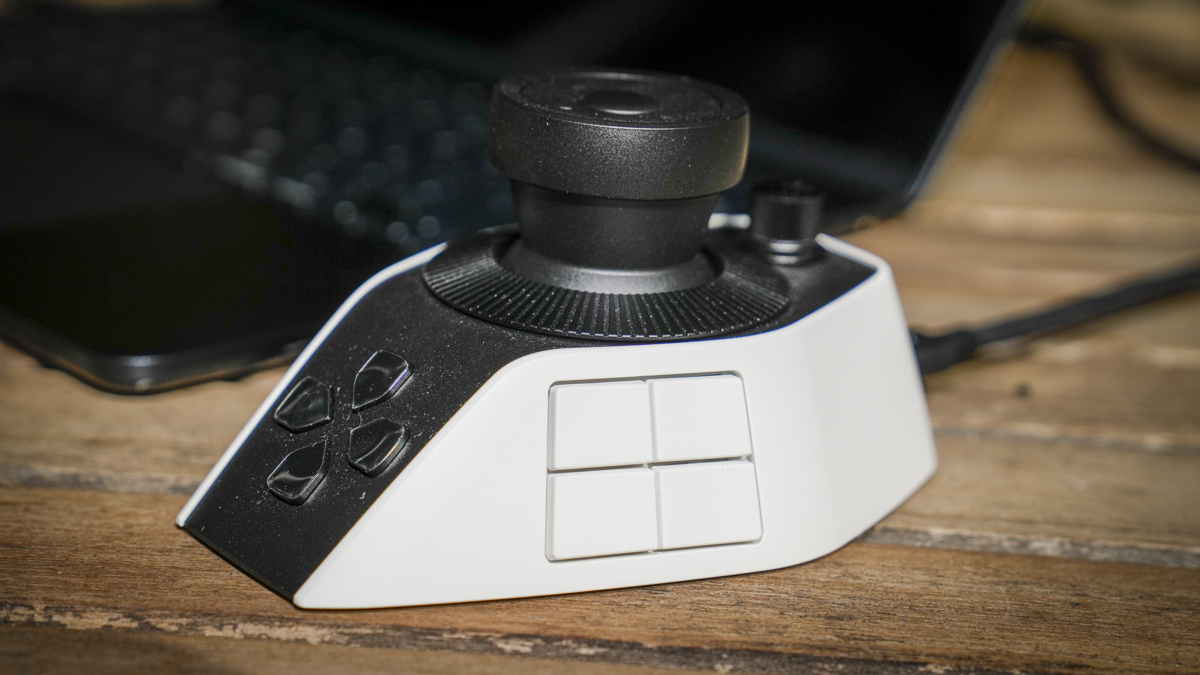
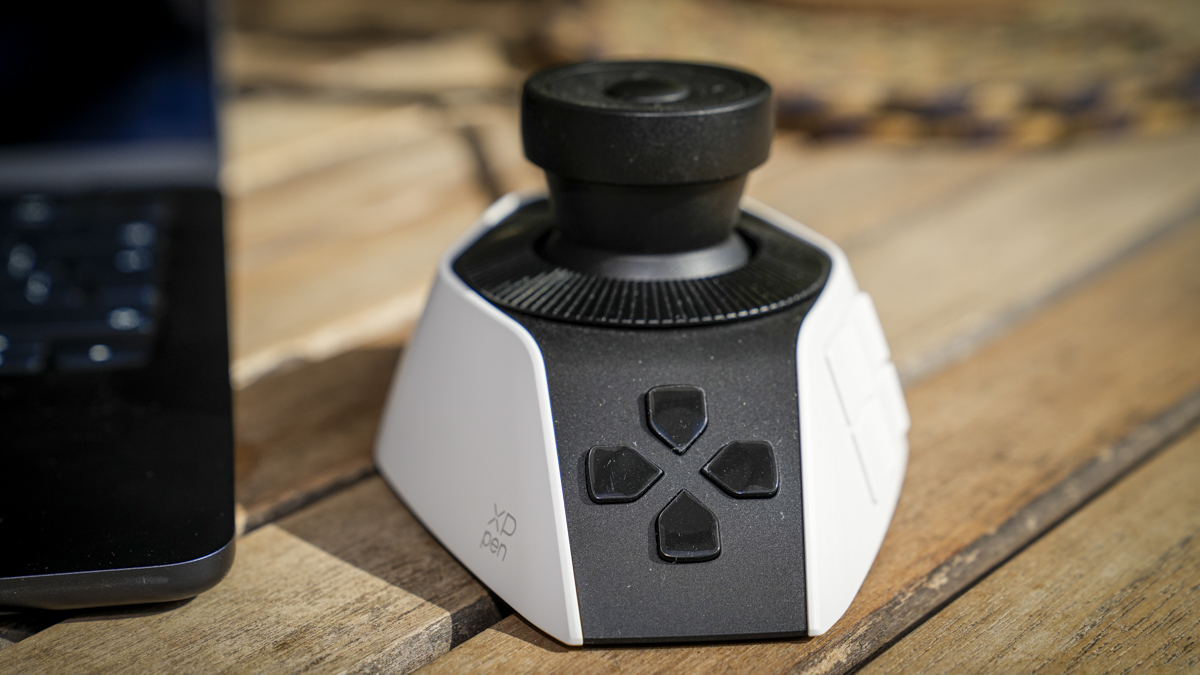
The Pilot Pro is a stunning-looking piece of kit with its futuristic design that’s designed to be used one-handed. Essentially, it’s like a slightly oversized mouse with additions that sit under your hand and give you access to controls that are all arranged so they all fall naturally under your fingers. The XPPen Pilot Pro has been designed to be used in and out of the office, and at 251g, it’s relatively light, so you can take it with you wherever you need it.eed. This is in stark contrast to the control boards I trained on years ago that were fixed in the editing suite and weren’t going anywhere.
Those were heavy, planted things that never moved; the Pilot Pro is designed to be portable, so it’s a far lighter-weight device, and while that’s a great move considering the change in kit and what we see on a modern desk, especially if you’re a travelling editor, part of me misses the sheer immovable heft of the old boards.
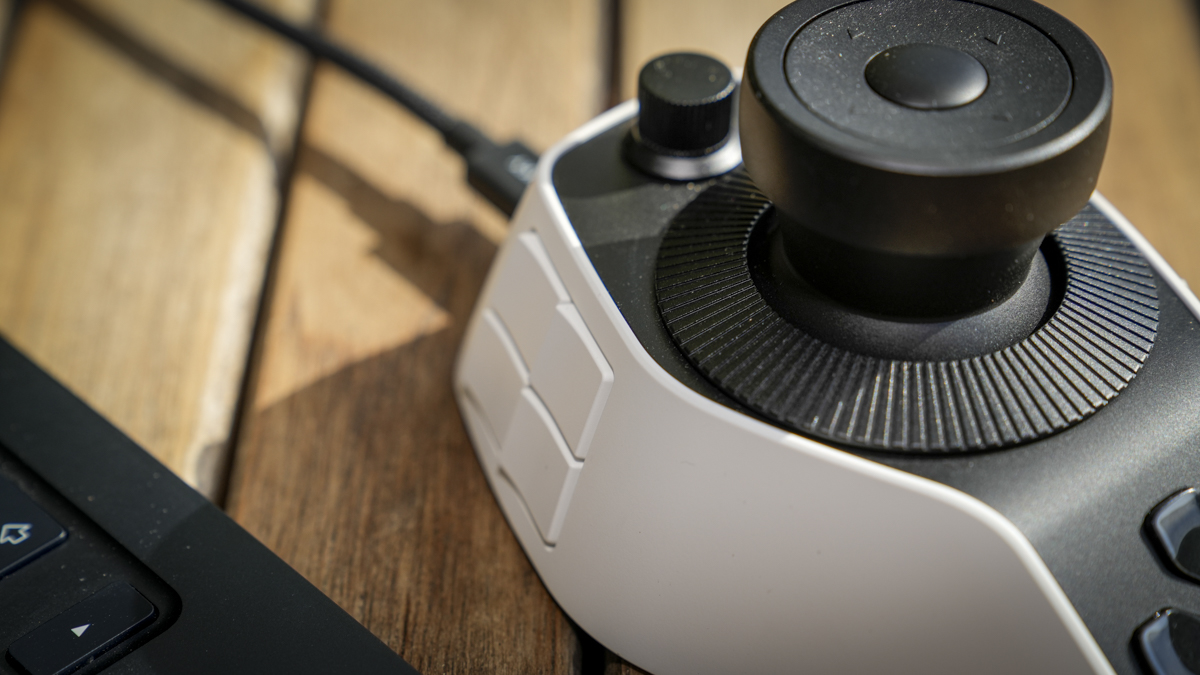
On the XPPen Pilot Pro, the most dominant features are the three rotary dials, the tactile heart of it, with adjustable haptic feedback and three vibration strengths, so you can dial in the level of physical response you get as you turn them. Like with gaming pads and phones, this feedback is essential, especially as you get more used to the system, and enables feedback through the controller.
The joystick is the other key control, sticking up from the controller, and again, it’s incredibly versatile, working in both four-way and eight-way modes through the software, depending on what you assign to it. I’ll admit that I wasn’t delicate enough with the controls for the eight option to work in my workflow; however, the default four was ideal.
My one real ergonomic gripe, and ever with these controllers, is that there’s no spring-action scrub wheel. What I’ve always wanted from a controller like this is a wheel you can spin to scrub through the timeline with acceleration, then simply let go and have the scrub stop where it lands. The Pilot Pro’s dials don’t do that, so I ended up assigning the spacebar to a button to halt playback instead, which works perfectly well, but a sprung wheel would be the one addition that would make this feel complete to me.
The controls themselves are well-positioned, though the buttons are fairly uniform in shape. As I got started, I did need to keep looking down to make sure I had the right button, but over time, it became more intuitive as I used it.
Features
The whole point of the Pilot Pro is customisation, and this is where it either wins you over or loses you, depending on how much you’re willing to put in. I found that the more I put in, the more useful the product became.
You can run with the presets XPPen supplies, which I found worked well, though nothing was quite where I wanted it, so I quickly ended up throwing most of them out and building my own from scratch to match exactly how I work. If you are established in an editing rhythm, the ability to map every control to your own commands is essential, and it makes a huge difference compared with working on a keyboard.
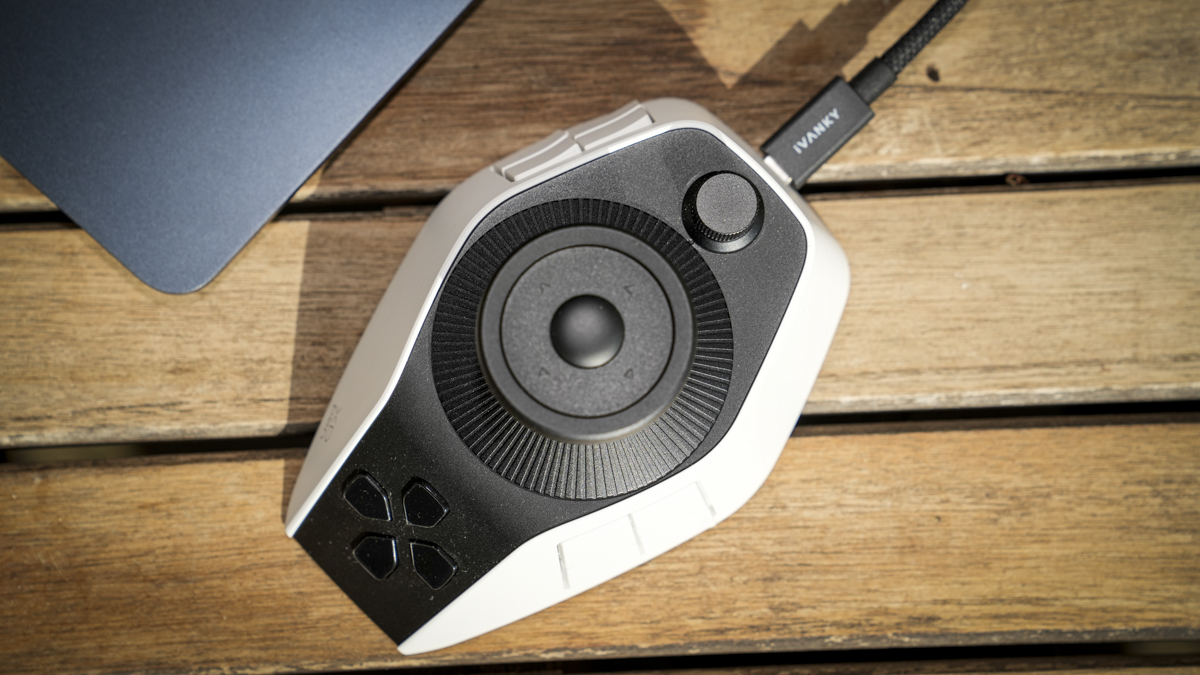
Taking Final Cut Pro as an example of how I set it up: I assigned the joystick left and right to scrub the timeline quickly, mapping it to the J and L shortcuts for backward and forward, then used the scroll wheel for fine-tuning, with left and right rotation set to the arrow keys for frame-by-frame nudging. That combination, fast scrub on the joystick, fine control on the wheel, gets you around a timeline with a fluency that’s hard to match on a keyboard once it clicks. The same logic applies to Lightroom Classic, where you can place your most-used development adjustments on the dials and work through images by feel.
Profiles switch automatically as I move between applications, so the controller reconfigures itself when I move from Premiere to Lightroom without me having to make any changes through the software.
What I liked about the Pilot Controller software is that there’s an on-screen HUD that shows your current shortcut assignments, which is a real help while you’re still learning the layout and adjusting it. You can also download expert profiles as a starting point if you’d rather not build from scratch. Each preset supports up to seven themes, which is a slightly odd limit, though in practice, seven is more than most people will use.
Connectivity is flexible, with wired USB-C, Bluetooth 5.4 and a 2.4G receiver all on offer, so it’ll fit whatever your setup prefers, and the battery life I found to be a non-issue, mainly due to working wired, but when I was away from my desk, it worked solidly for a couple of days and still showed plenty of battery life.
Performance
It takes a while to get used to using something that’s different from your keyboard and mouse. Using it like any control surface relies heavily on your muscle memory, and this has to recalibrate to the device, which ultimately means that for a while, you’re slower than you would be on the keyboard. I found myself l looking down, second-guessing which button does what, occasionally reaching for the keys out of habit.
I do have a slight head start, having trained on a control board editing from D1 and D2 cassettes to some other format after logging everything, and while that was more than thirty years ago now, some of that old muscle memory did start to filter through, which was a strange and rather pleasant surprise.
But once I’d pushed through that initial phase, the pay-off was massive. Once the layout was set to my liking, I found that navigating was fast, and the speed and natural flow of editing were far better than using a keyboard. It goes through three stages, really: at first, it’s a fiddle to set up and a struggle to remember; then it starts to make sense and becomes intuitive; and finally, it just becomes second nature, and you forget you could ever edit with the keys. That last stage is where there is no going back, and the Pilot Pro becomes a permanent fixture on the desk.
Across Final Cut Pro, Premiere Pro, and Lightroom Classic, the ease of use and increased editing speed were apparent. The dials are precise, the joystick scrubbing is quick and controllable, and the eyes-free operation, as highlighted by the manufacturer, is aided by the haptic feedback and actually works once you trust it. For repetitive, high-volume editing and grading, this is exactly the kind of tool that helps you speed through that backlog of editing.
The one issue I found worth highlighting is stability. On my M1 Max Mac, I hit a few initial stability issues, the controller occasionally being temperamental, but after some investigation, I’m fairly sure that’s down to the sheer number of controller and tablet drivers I’ve installed on that machine over the years, and it simply being cantankerous in its old age rather than anything wrong with the Pilot Pro itself. Tellingly, on the M3 machines I tried, it all worked without a hitch. So I’d flag it as something to be aware of if you’re installing onto a long-serving Mac with a lot of driver history, but not as a fault with the device.
Final Thoughts
The XPPen Pilot Pro made a huge difference to my video editing workflow, and it takes the concept of the old editing control board, which anyone who’s used one will tell you is a faster, more natural way to work, and shrinks it into a compact, affordable, customisable device that sits on a modern desk. As a video control surface, it took a while to set up to my liking and then longer for my mind to get around the different control assignments, but with use, it soon makes sense, becomes intuitive, and is faster than the keyboard, until eventually it’s just second nature.
It’s not without its issues. The learning curve is real and shouldn’t be underestimated. The buttons could be more distinct to the touch, and I’d genuinely love to see a spring-action scrub wheel in a future version. The stability wobble on my older Mac is worth noting, though I put that down to my machine rather than the controller, given that the M3S were flawless.
But for editors, colourists and photographers who spend serious time in the same applications and want to work faster and more fluidly, the Pilot Pro is well worth the investment of setup time. At £160.99, it’s an accessory aimed at committed creatives rather than casual users, and if you’re the sort who’ll take the time to make it your own, it repays that effort many times over. For anyone who, like me, trained on a proper control board, it’s a genuine pleasure to have that way of working back on the desk.